
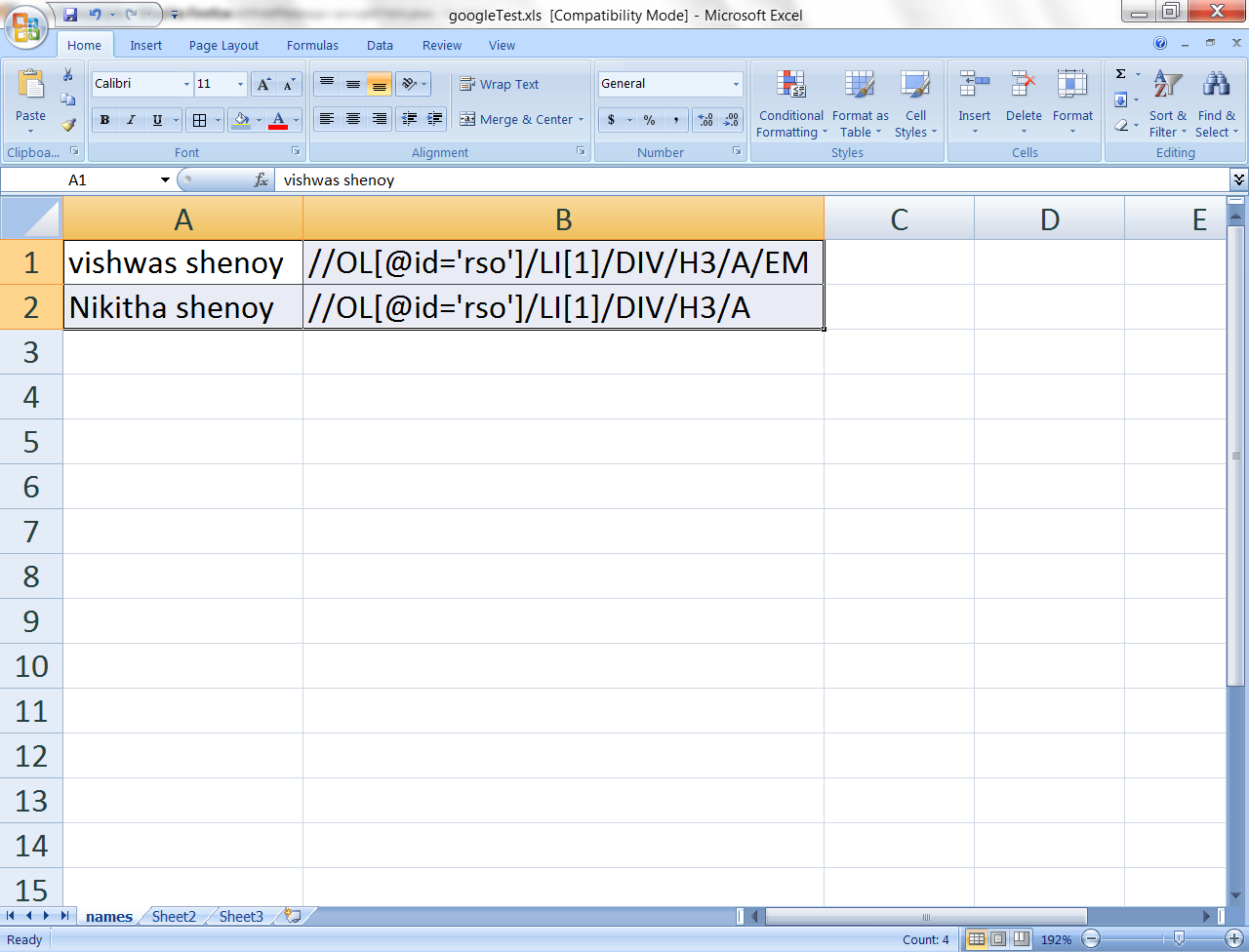
Example of data driven Testing

Image

In this post, i will given an example of data driven test that i carried out on google.com.

I saved a excel with data – Input string for search box & the xpath of the links in search result that i want to click. The above snap shows the excel with data.

package DataDrivePackage;
import com.thoughtworks.selenium.*;

import junit.framework.TestCase;
import org.junit.AfterClass;
import org.openqa.selenium.By;
import org.openqa.selenium.WebDriver;
import org.openqa.selenium.WebElement;
import org.openqa.selenium.ie.InternetExplorerDriver;
import org.openqa.selenium.server.SeleniumServer;
import org.testng.annotations.*;

import java.io.File;
import java.io.FileInputStream;
import java.io.InputStream;
import java.util.Iterator;
import java.util.concurrent.TimeUnit;

import jxl.*;
import org.apache.poi.hssf.usermodel.HSSFCell;
import org.apache.poi.hssf.usermodel.HSSFRichTextString;
import org.apache.poi.hssf.usermodel.HSSFRow;
import org.apache.poi.hssf.usermodel.HSSFSheet;
import org.apache.poi.hssf.usermodel.HSSFWorkbook;
import org.apache.poi.poifs.filesystem.POIFSFileSystem;
import org.apache.poi.ss.usermodel.Cell;
import org.apache.poi.ss.usermodel.Row;

public class googleTest {
        
    WebDriver d    = new InternetExplorerDriver ();

    @BeforeClass
    public void envSetup()throws Exception
    {
        d.get(“http://www.google.co.in/”);
        System.out.println(“opened the browser”);
    }
    
    
    public void checkUrl()throws Exception
    {
        if (d.getCurrentUrl() != “http://www.google.co.in/” )
        {
            System.out.println(“yes google is not on”);
            d.get(“http://www.google.co.in/”);
            d.manage().timeouts().implicitlyWait(5, TimeUnit.SECONDS);
        }    
    }
    
    
    @Test (dataProvider = “dp”)
    public void gTest (String searchString, String clickLink)throws Exception
    {
        System.out.println(searchString+” “+ clickLink);
        d.findElement(By.xpath(“//INPUT[@id=’gbqfq’]”)). sendKeys (searchString);
        WebElement e = d.findElement(By.xpath(“//INPUT[@id=’gbqfq’]”));
        e.submit();
        d.manage().timeouts().implicitlyWait(5, TimeUnit.SECONDS);
        d.findElement (By.xpath(clickLink)).click();
        checkUrl();
    }
    
    
    @DataProvider(name = “dp”)
    public Object[][] sendData ()throws Exception
    {
       Object[][] retData = getArrayTable (“C:\\selDataFolder\\googleTest.xls”);
       return (retData);
    }

    public static String[][] getArrayTable (String xlPath) throws Exception
    {    
        int r = 0, c =0;
        
        InputStream inputStream = new FileInputStream(xlPath);
        POIFSFileSystem fileSystem = new POIFSFileSystem (inputStream);
        HSSFWorkbook workBook = new HSSFWorkbook (fileSystem);
            
        HSSFSheet sheet = workBook.getSheetAt(0);
        Iterator<Row> rows = sheet.rowIterator();
        
        int totalRows = sheet.getPhysicalNumberOfRows();
        HSSFRow row1 = sheet.getRow(1);
        int totalCols = row1.getLastCellNum();
        String[][] tabArray = new String[totalRows][totalCols];
    
        while (rows.hasNext())
        {
            Row row = rows.next();
            
            Iterator<Cell> cells = row.cellIterator();
            while (cells.hasNext())
            {
                Cell cell = cells.next ();
                tabArray[r][c] = cell.getStringCellValue ();
                ++c;
            }
            
            c=0;
            ++r;
        }
        return tabArray;
    }
}

Explaination

1. I create a input stream of type file inputstream.

2. Created a POIFSFileSystem, taking this file input stream as parametr.

3. Created a HSSF workbook, to access the excel.

4. Created a Iterator of Row class type. Using this iterator, i can get a collection of rows in the sheet with the pointer at row beginning.

5. using hasNext() method, i move thru the rows.

6. I create a object of type Row class to store the pointer to the next row as i iterate.

7. Similarly, i iterate thru the cells in the same way as i explainted for the rows above.

8. Store the result in a array and return it.


Data Driven framework for Selenium

Selenium being open source tools, it has not got many in built features like the commercial tools.But that is not a show stopper at all. There are innumerable methods to achieve the things in selenium. As being rightly said by one of the test managers in Microsoft company – the need of the day to is to use a test tool which will bring several features scattered away, in one place. Selenium is exactly doing that in my opinion.

So, coming to the topic-question. If the question is whether we can implement Data driven framework? the answere is Yes. Selenium has any in-built function to do it? NO.

I will discuss here the process that i adopted to achieve it.

1. use apache POI to read/write the excel.
2. Use the TestNG framework – to drive the test method with the data from excel.

Step#1 – How to read data from excel. There are several options. One way is to use JXL. But i felt that it requires lot of coding to read the data, store it in matrix and supply the data. So i went for Apache POI APIs.

Step#2 – Why TestNG? It makes life simple for data driven framework!!! What you need to do is only this –
1. create a method which will read the data from excel and store it in matrix (using Apache poi).
2.Using test annotation, give a name to this method : @DataProvider (name = ‘dp’)
3.Tell your @Test that this is your dataprovider : @Test (DataProvider = ‘dp’). This will make the Test to run as many number of times as the number of rows or data are there in the excel.

I will share the code that i wrote to read the data from excel and store it in an array, using Apache Poi

import java.io.FileInputStream;
import java.io.InputStream;
import java.util.Iterator;

import org.apache.poi.hssf.usermodel.HSSFSheet;
import org.apache.poi.hssf.usermodel.HSSFWorkbook;
import org.apache.poi.poifs.filesystem.POIFSFileSystem;
import org.apache.poi.ss.usermodel.Cell;
import org.apache.poi.ss.usermodel.Row;

public class apacheExcel {
   
   static int r = 0, c =0, t=0;
   static String[][] tabArray = new String[100][100];
   
   public static String[][] getArrayTable (String xlPath) throws Exception{
       
       InputStream inputStream = new FileInputStream(xlPath);
       POIFSFileSystem fileSystem = new POIFSFileSystem (inputStream);
       HSSFWorkbook workBook = new HSSFWorkbook (fileSystem);
       HSSFSheet sheet = workBook.getSheetAt(0);
       Iterator<Row> rows = sheet.rowIterator();
               
       while (rows.hasNext())
       {
           Row row = rows.next();
           
           Iterator<Cell> cells = row.cellIterator();
           while (cells.hasNext())
           {
               Cell cell = cells.next ();
               tabArray[r][c] = cell.getStringCellValue ();
               ++c;
           }
           t=c;
           c=0;
           ++r;
           }
       return tabArray;
   }
   
   public static void printArray(String[][] array) throws Exception
   {
       for (int i=0; i<r;i++)
       {
           for(int j=0;j<t; j++)
               System.out.println(array[i][j]+ ” “);
       }
   }

   public static void main (String[] args) throws Exception
   {
       getArrayTable (“C:\\selDataFolder\\googleTest.xls”);
       printArray(tabArray);
       
   }
   
}

I hope the code is simple for everyone to understand. If anyone needs any help just drop a comment.

a object oriented approach in designing the selenium script

Image

Having learnt java as part of my zeal to learn selenium, I did what any java-selenium beginner will do – write everything in main() function. The code was looking so messy with a class defined in way as to break all the rules of abstraction, encapsulation and data hiding. There was a joy – for having built the first selenium code overcoming all the problems that I discussed in my earlier posts. But there was something missing in the joy. And it didnt take much time for me to know what was it.

When i started looking out for options to make my selenium script data driven, I bumped with TestNG framework. This is a wonderful framework which makes the life easier when one has to implement the data driven framework.

The framework provides many annotations – @BeforeClass, @ BeforeTest, @BeforeMethod, @Test and all these with @After keywords.

So there was no need to have main() and drive the tests from there. More importantly, there was no need to write complex line of codes for reading data from excel. TestNG provides @DataProvider annotation which will iterate our corresponding @Test as many number of times as the number of rows of test data is present in the excel file. Please visit TestNG site for a detailed understanding of the features of it.

Now, my script (written to automate the account opening functionality in a core banking application called Flexcube) looked somewhat like this –

Class SomeClassName

{

@BeforeTest

Function to setup the environment, open url;

@Test

line of code to open account;

}

The following were the drawbacks that I observed:

  1. I was not following the rules of OOP again. Everything was declared as and when required. Test data was hard coded, as my plan was to implement @DataProvider at a later point of time once the script was ready.
  2. No code reusage
  3. Everything was driven from @Test.
  4. Any change in the script was painful task, as the program was almost looking like that written in procedural Language such as C.
  5. Finally, the @DataProvider – There was no way i could implement it here given that the lines of code which required data was scattered all through the program aimlessly.

So I spent hours together to design a program which would include the best practices of both – the OOP features and the TestNG features. And finally I have achieved it to a certain extent with the help of inheritance, abstraction and encapsulation. The program now looks somewhat like this ;

(due to some security issues, removed the code)

Looking at the above, its not difficult to makeout that if i use the @DataProvider, all that needs to be done is to enclose the single liner code in a function, such that it gets data from the data provider function. This data can then be used to call the function for which the parameters passed will be the data recieved form the data provider. The data provider function will have the line of codes to handle the array which will read and store the value from excel.

baby steps towards my first selenium script – the learning process

I would be discussing here a few of the hiccups that i faced during my first selenium scripting. A few of them i have already discussed in my earlier posts. In this one, i will discuss a few more, on which i had to spend a significant amount of time and – as my blog’s tag line says, the only feeling that i got after getting over the problems was the sense of releif and not the happiness.

1. Sleep and Implicit wait.

I was using the Implicit wait statement – “driver.manage().timeouts().implicitlyWait(10, TimeUnit.SECONDS);” after the “driver.get(URL)” line of code. But the IE used to fail to launch the app. I always used to get the javaw.exe error. No matter what i did, i was not able to overcome this problem.

Then i decided to use the Thread.sleep() function by overcoming the warnings by java gurus. It worked like a charm.

Why it failed earlier?
If we use the implicit wait, the driver searches for the application to refresh. But in my case, after the url is launched, the application opens in a fresh new browser window. Hence the driver was failing to understand which window-refresh it has to wait for. Subsequently, the application was not launching at all in the new fresh window.

2. SSL :

When the web application communicates with the server secured socket layer, the internet explorer or any other driver will throw a warning if the certificate is not installed at the client. Why? because the response is encrypted and the client browser thinks it is a unsafe data.
Now, if we want to run our selenium script on such websites, there are a few things to keep in  mind:

  • add the website under the trusted sites category.
  • if you are running the script on IE browser, use the javascript command to click on override in the security certificate warning window.

3. Building xpaths:
Normally, when running the script on IE, we always face a problem in getting the xpath of an element. Not all the element will have a unique name, id etc. So what to do in such case?
Using the developer tools that the IE offers (F12 key on IE 7 and above), we can get the properties of the elements in the webpage. Using that, we can build the xpath of that element as illustrated below –

for ex:, if onclick property of a button has the value “setPages();getLovResults();” {semicolon is part of  the value. though “” will be there in the value, while copy pasting it will not get copied.} we can make xpath of that button as (By.xpath(“//button[contains(@onclick,\”setPages();getLovResults();\”)]”))

  1. button → This will be specified for that element under the property Type, at the end.
  2. In general, the syntax is (By.xpath(“//Type[contains(@onclick,\”ONCLICK VALUE\”)]”))

in my next post, i will discuss about the TestNG framework and the usage of OOP features in selenium script.

Handling the numbers in selenium

In our automation scripts, often we come across the scenarios where we need to handle numbers as input to certain input fields/Text fields.

If you are implementing webdriver using Java like me, we will hit a roadblock in case if we handle the numbers using the int datatype variable. In my case, I had to input the Account number of the customer into input box. The account number format is such that it starts with zero digits. In java, numbers starting with 0 are treated as octals. so i was in a fix.

The problem is not just with octal interpretation. If you use the following line of code to pass the values to text field,

webelement.findElement (ById()).sendKeys(int variable);
it will not work. Reason being, sendKeys function accepts only the string as it variable.

ofcourse there is a workaround. I was able to get two of them
1. webelement.findElement (ById()).sendKeys(” ” + int variable);
But the above will not help me. Reason being, i need to send one digit at one time. Because the input field is in form of tiny boxes which will only accept 1 digit each from the whole account number (consisting of 9 digits).

2. Make the account number as string.
string s = “000181001”;
int i = 0;
within for loop
{
webelement.findElement (ById()).sendKeys(” ” + charAt(i));
}
This worked like a charm for me.

The frames

In the web application that i test, the sub pages opens as frames within the main window.

The following line of code used to work absolutely fine in the version of the application for which i coded –

webdriver.switchTo().frame(“frame_name”);

But when i ran the same code in the next version of the application, it started to fail certain places. A closer look helped me to analyze the scenarios in which it was failing –

  • In the app, when the user wants to input a new account (its a banking product called Flexcube), he clicks on New button, which opens a first frame – the main frame (apart from the browser window on which it is open).
  • In the main-frame, if we click on any LOV (list of values) icon – a pop up window opens. From this, the user can select the customer number (for example).
  • The code to switch to frame used to work fine for main-frame. Whereas, for the popup frames (yes, pop ups were also frames), it used to fail.

The following solution helped me to overcome this problem :

List <WebElements> frames = d.findElements(by.id(“frame_name”);

if(frames.size()>0)

{

Line of codes

}

Thanks to the folks from Adobe and other company who had shared this solution.


But i’m still unable to find out as to why this pop up frames started behaving like this in new version.

The IE zoom level

I had a selenium script (webdriver) which i had written in my older system and then migrated to the new system when i switched over.

All was fine in the script till one fine day when the script started to ignore the click(); command. it was detecting it, but wasnt clicking on it.

After googling i found that the same problem was being faced by other people as well. The below copy pasted question explains the situation better –

The page contains a form with two < input >’s for username and password, and one < input > for submitting the form. I can successfully enter values for username and password, but the Click() call on the submit button appears to have no effect.

Per other recommendations, I have tried the following tricks, none of which has worked:

  • Change window focus to currentWindowHandle
  • Click on the element’s parent, then on the element
  • Add a long implicit wait
  • Add a long explicit wait (by sleeping 20 seconds)
  • Click a whole bunch of times on the element
  • Use Submit() instead of Click()
  • Send the keys “\n” to the element (Selenium reports this as an error)

Note that I have verified that the < input > button is indeed successfully found, so that doesn’t seem to be a problem.

Also, note that I have verified the button does indeed work outside of Selenium-land. That is, I can browse to the site, enter login credentials, and click the submit button (and it works!).

Also, note that this problem is on IE. It does not occur for me with Chrome and FF7.

And the issue was – browser zoom level. Somehow it had got changed to 125%. The google code page has mentioned that the zoom level needs to be 100% for the native events to work in IE.

Now obvious question is, what is Native event?
After googling, this is what i could dig out –
As the InternetExplorerDriver is Windows-only, it attempts to use so-called “native”, or OS-level events to perform mouse and keyboard operations in the browser.
In my opinion, it has got something to do with the coordinates of the various elements which is relative to the zoom level.

Also, the googling helped me to know one more thing.
If we face difficulty in driving the webdriver to click on a element, we could resort to the last option – using javascript command. The below examples will help to understand the usage and syntax of the same.
1.webDriver.navigate().to(“javascript:document.getElementById(‘overridelink’).click()”); –>clicks on override link when there is SSL certificate issue (will talk more about this in another post)
2. javascript:document.getElementById(‘submitButtonId’).click.
submitButtonId – could be any button id that we want to force click on a webpage.


First tech blog

My experience helped me to considerable extent, while writing this blog. The most important reason behind starting this new blogsite (i already have one blog site where i share my personal, non-tech experiences), is to share my day in and day out experience with the following – 1) Software Testing 2) Java & Selenium and 3) Finance.

So obviously, before putting up this first post, the first question that came to my mind was – which topic to be put first? And to feed to the confusion was another question – how to sequence my posts?

Now, its impossible to get an answer for both of those questions and hence i decided to jump into the pool straight away without thinking anymore.


Basically, with this blog site, my aim is to unload all the useful information that I’ve stored in my Google Docs – the info i had dug out googling while learning anything.

This post i am going to discuss about what i know about Data driven and Keyword driven automation testing.

1. Data driven :

Lets take one example – gmail login page. The user id field will accept the alphanumeric characters. Suppose if i hardcode the value vishwas_shenoy for username field, it is going to test only one combination. This anyways is not so difficult to test manually also.But that will not do comprehensive testing of that field and page. We can come up with so many combination of input data for that field. This combination of various inputs can be listed in a excel and the test can be run as many input data that are there. This is data driven testing in principle. How we implement it depends on the tool that we use.

2. Keyword driven:

Using the same example of gmail – there are so many things that a user can do after login like check mail, compose etc. I want to simulate a use case – real time scenario such as 1. Login, check mail , logout
2. Login, do nothing, Logout
3. Login, compose by reply, logout
4. Login, forward a mail, logout.
If we look at these examples, the login, logout are common functions. So instead of writing the code for these functions separately in each of the script, we can reuse the common functions if  write them one each separately and give them a logical name – login, logout etc. So for use case 3, i can just write Call “Login” and write the rest of the code.

Most of the times, the two frameworks are implemented together and naturally this framework is termed as Hybrid Framework.